Activate with a license key
Super Shortcuts is free to start. Super Shortcuts Pro - unlimited workflows, voice mode, the full template library, and the element inspector - is unlocked with a one-time license key. This guide covers how to activate it and fix the errors you might hit. To run Pro on several Macs or move it to a new machine, see Use Pro on more than one Mac.
Before you start
Section titled “Before you start”You’ll need:
- Super Shortcuts installed and running on your Mac.
- A license key, which looks like
XXXX-XXXX-XXXX-XXXX. - An internet connection. Activation is a one-time online check; Pro keeps working offline afterwards (see Offline use).
Don’t have a key yet?
Section titled “Don’t have a key yet?”Open Settings → About and click Buy Pro, or go straight to super-shortcuts.com/pro. Checkout is handled by Lemon Squeezy, and your license key is emailed to you right after purchase. If it hasn’t arrived within a few minutes, check your spam folder.
Activate your license
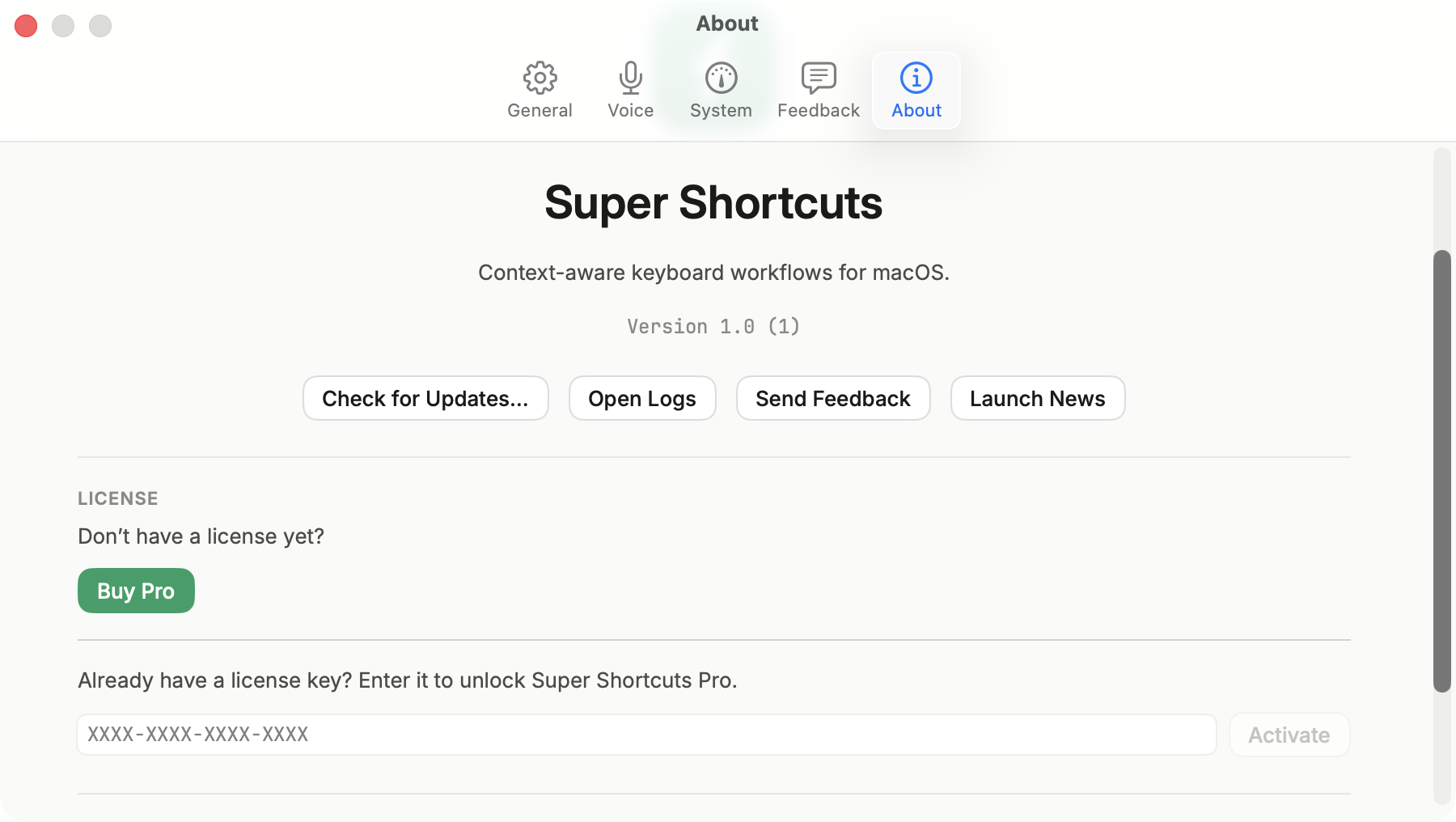
Section titled “Activate your license”- Open Super Shortcuts’ Settings - press
Cmd,(comma), or choose Settings from the menu bar icon. - Select the About tab.
- Scroll to the License section.
- Paste your key into the field marked
XXXX-XXXX-XXXX-XXXX. - Click Activate (or press Return).
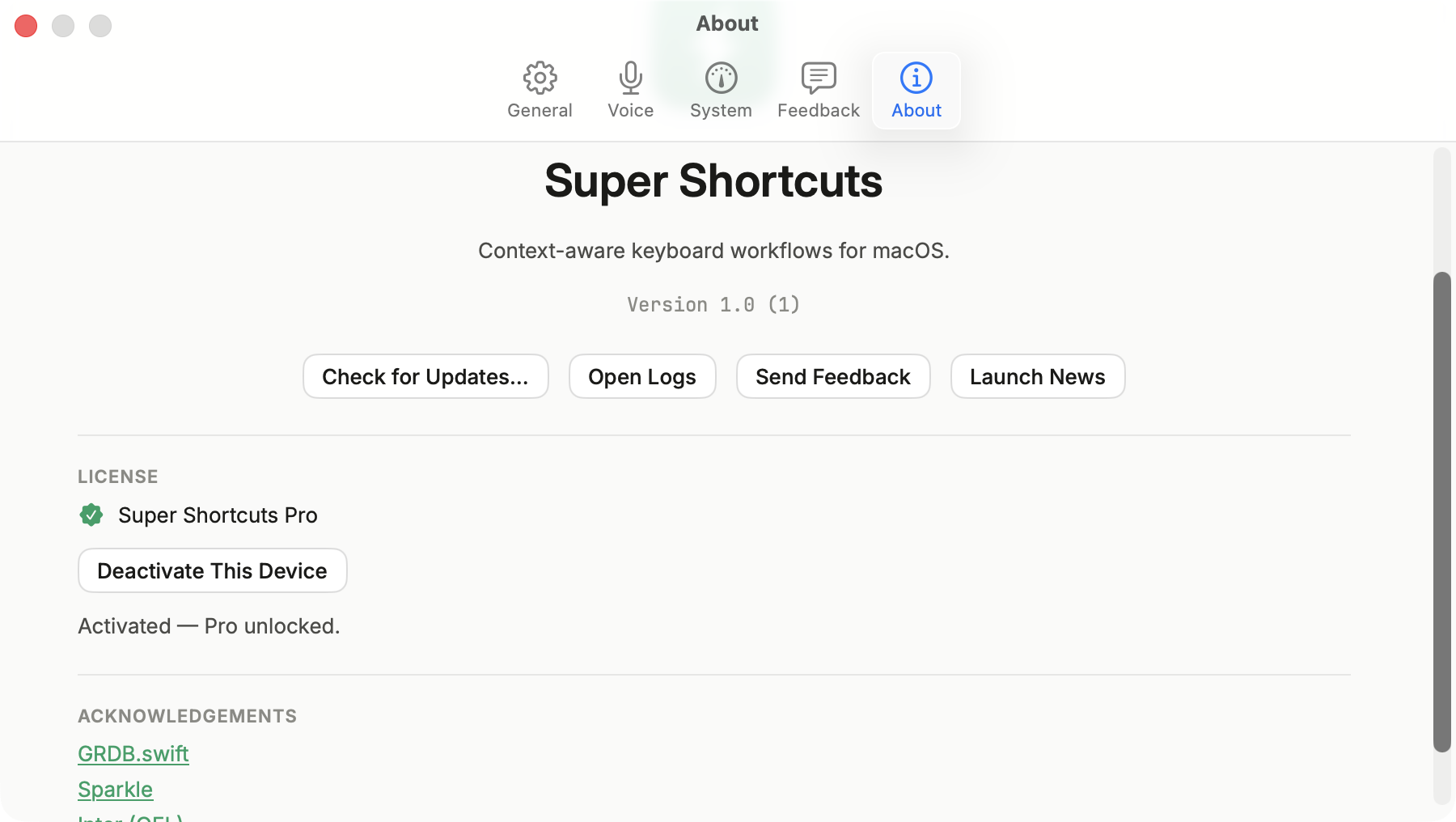
A green confirmation appears - Activated - Pro unlocked. - and the License section switches to show a Super Shortcuts Pro badge. Every Pro feature unlocks immediately; there’s no need to restart the app.
Troubleshooting
Section titled “Troubleshooting”If activation doesn’t go through, the License section shows the reason. Here’s what each message means and what to do.
| Message | What it means | What to do |
|---|---|---|
| That license key wasn’t recognized. | The key doesn’t match one on file. | Re-check for typos; paste it straight from your purchase email rather than retyping. |
| That license has expired. | The purchase was refunded or the license was revoked. | Contact support if you think this is a mistake. |
| You’ve reached your 3-device limit. Deactivate a device you no longer use, then try again. | Every device slot is in use. | Free up a slot, then click Activate again. |
| Activation paused - too many device changes recently. Try again after [date]. | A cooldown after moving between several Macs in a short window. | Wait until the time shown, then retry. |
| Couldn’t reach the server. Check your connection and try again. | The app couldn’t reach the licensing server. | Check your internet connection and try again. |
| This license couldn’t be verified on this device. Make sure you’re on the latest version, then try again. | The license couldn’t be verified locally. | Update Super Shortcuts to the latest version, then retry. |
Offline use
Section titled “Offline use”Activation itself needs an internet connection, but once you’re Pro, Super Shortcuts keeps working offline. It quietly re-checks your license whenever it’s back online, so you only need to reconnect every couple of weeks to stay activated.
Still stuck?
Section titled “Still stuck?”Email [email protected] with your license key (or the email you bought it with) and we’ll sort it out.