Guide
A Keyboard Layout for Unlimited Shortcuts
Updated
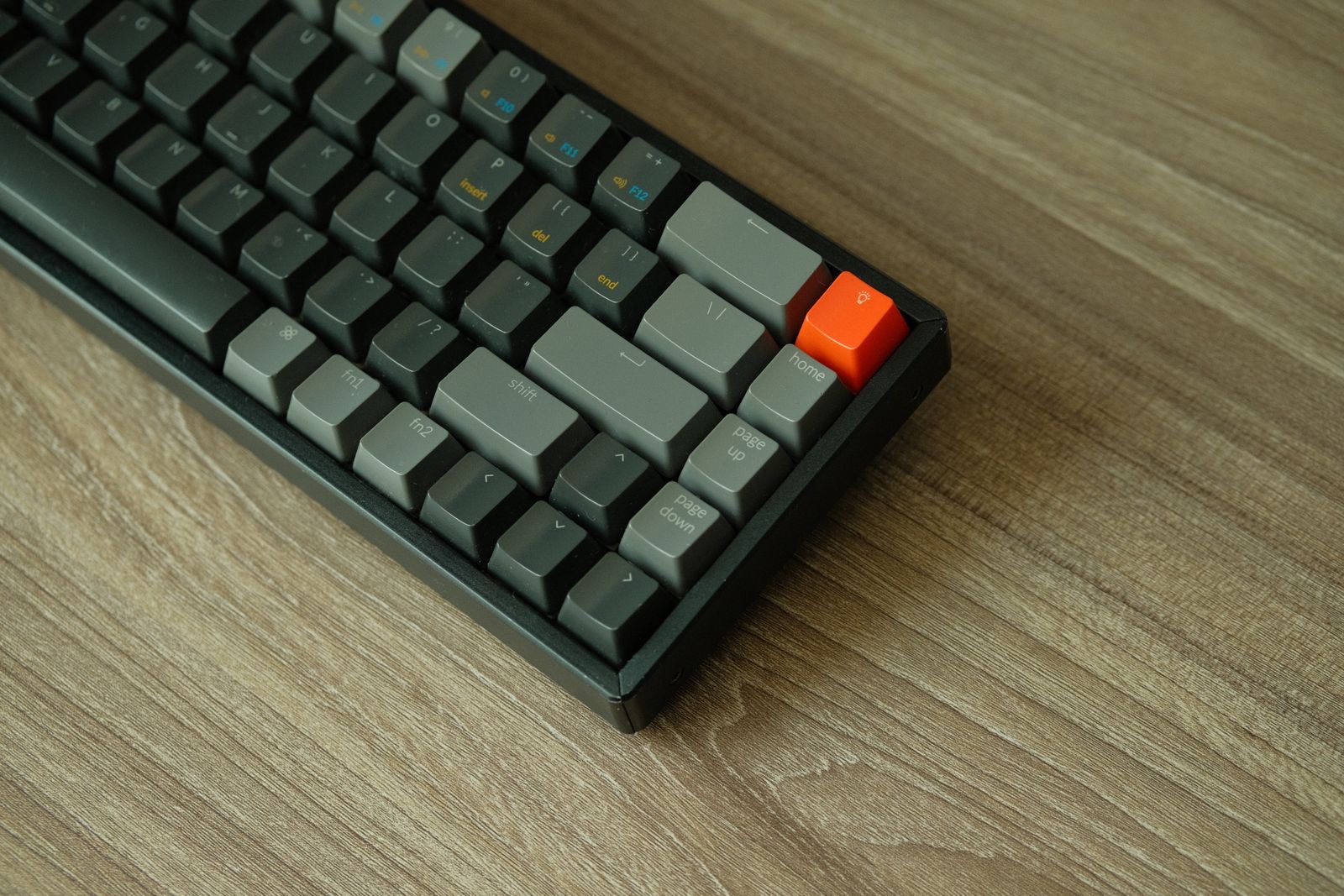
You can have hundreds of keyboard shortcuts that never collide and that you can actually remember - if you organize them by what kind of key they sit on. Put your global commands on the number and function keys, your per-app commands on the letter keys, and stack a second layer with Shift. A single hyper key then gives you 44 commands that work everywhere, plus 66 more in every app you set up. This guide explains the layout and why it holds together.
This assumes you already have a hyper key. If not, start with the Mac hyper key guide - it takes about two minutes to set up.
Why you run out of shortcuts, or forget them
Custom shortcuts usually fail for one of two reasons. Either they collide - the chord you picked is already taken by the app - or you forget them, because you scattered them across random keys with no logic tying a key to what it does.
The hyper key solves the first problem: ⌃⌥⌘ plus a key is a combination almost nothing binds, so nothing clashes. But a collision-free key by itself doesn’t solve the second problem. If Hyper + J mutes your mic in one app and inserts a date in another and you picked both at random, you’ll still forget. The fix isn’t willpower. It’s a layout where a key’s position tells you what kind of thing it does.
The core idea: give every key a job by its type
Divide the keyboard into two zones and give each a rule:
- Numbers and function keys are global. They fire the same command in every app. (
F1throughF12, and1through0.) - Letter keys are app-specific. What they do depends on the app you’re focused in.
That single rule does the heavy lifting. You never wonder “is this shortcut global or local?” - the key answers for you.
Your global layer: numbers and function keys
These are the commands you want available everywhere, regardless of what’s in front of you. Numbers and function keys are perfect for them because they’re abstract and positional - there’s nothing about the 4 key that “belongs” to a particular app, so your brain is happy to treat it as a system control.
Good candidates for the global layer:
Hyper + 1…Hyper + 9to launch or focus your nine most-used apps (why this beats Spotlight)Hyper + F1…Hyper + F4for window tiling (left half, right half, full, center)Hyper + F5to mute or unmute your mic from any appHyper + F6to toggle Do Not Disturb
That’s 22 keys in the global zone: ten number keys plus twelve function keys.
Your per-app layer: letter keys
Letters are where the system gets its reach. A letter is mnemonic - R wants to mean something - so it suits a verb that changes from app to app. The same physical chord can carry a different, obvious meaning in each place:
| Key | In Google Docs | In Mail | In your terminal |
|---|---|---|---|
Hyper + R |
make text red | reply | run last command |
Hyper + L |
insert a link | flag | clear |
Hyper + N |
new comment | new message | new tab |
You’re not memorizing three unrelated chords. You’re remembering “R is the obvious verb here,” and the layer scoped to the current app fills in the rest. Counting the 26 letters plus the seven or so punctuation keys around them (- = [ ] ; ' \), that’s 33 keys per app.
Double everything with Shift
Here’s the multiplier. The hyper key is ⌃⌥⌘. Add Shift and you get ⇧⌃⌥⌘ - a second combination that’s just as unclaimed by other apps. So every key has two commands: one with the hyper key, one with Shift held too.
Hyper + S sends; Shift + Hyper + S schedules. Hyper + 1 opens your editor; Shift + Hyper + 1 opens your editor and the right project. The mental model stays simple: Shift means “the variant.”
The math: how big does this get?
| Layer | Keys | Scope | Commands |
|---|---|---|---|
| Hyper + numbers/Fn | 22 | global | 22 |
| Shift+Hyper + numbers/Fn | 22 | global | 22 |
| Hyper + letters/punctuation | 33 | per app | 33 |
| Shift+Hyper + letters/punctuation | 33 | per app | 33 |
That’s 44 global commands plus 66 commands in every app you configure. Set up ten apps and you’re north of 700 distinct, collision-free commands - all behind one key your pinky already rests on. “Unlimited” is a slight exaggeration. “More than you will ever fill” is not.
Why this layout is actually easy to remember
Big numbers only help if you can recall what you stored. This layout is memorable by construction:
- Position encodes category. A number does the same thing everywhere; a letter is an app verb. You derive which is which from the key itself.
- Letters are mnemonic. You pick the letter because it means the action, so the cue is built in.
- Shift means “the other one.” One consistent rule for the entire second layer.
You’re remembering three rules, not seven hundred bindings.
A starter layout
A realistic first pass you can grow from:
| Chord | Command | Scope |
|---|---|---|
Hyper + 1..5 |
launch your top five apps | global |
Hyper + F1/F2/F3 |
tile window left / right / full | global |
Hyper + F5 |
mute mic | global |
Hyper + [letter] |
that app’s most-used verb | per app |
Shift + Hyper + [letter] |
the variant of that verb | per app |
Five global launchers, a few window controls, and one or two verbs in the app you live in. That’s a day-one setup that already pays for itself.
Where the cheat sheet comes in
Even a well-designed layout has a learning-in period, and the per-app letter zone is the part you’re still building muscle memory for. This is exactly what Super Shortcuts is built around: hold the hyper key and a cheat sheet drops over your keyboard, showing precisely what’s bound right now, for this app, across both the normal and Shift layers. You never have to recall a binding cold.
It’s also what makes the letter layer possible in the first place. Because Super Shortcuts scopes each command to the app you’re in, the same chord automatically resolves to the right action per app - which is the whole premise of putting verbs on letters. The layout and the tool are two halves of the same idea: a private, collision-free keyboard that you can actually keep in your head.
The bottom line
You don’t run out of keyboard shortcuts because the keyboard is small. You run out because the shortcuts aren’t organized. Give numbers and function keys to your global commands, letters to your per-app verbs, and Shift to a second layer, and one hyper key turns into hundreds of commands that never clash and stay memorable - because every key’s position already tells you what it does.
Next: why remapping your own shortcuts beats memorizing the defaults.
Frequently asked questions
How many shortcuts can this layout really give me?
From one hyper key: 22 global keys (10 numbers + 12 function keys) and 33 app keys (26 letters + about 7 punctuation keys), each with a normal and a Shift layer. That's 44 global commands plus 66 per app. Set up ten apps and you're past 700 distinct, collision-free commands.
Won't I forget which keys are global and which are app-specific?
That's the point of splitting by key type - the position tells you the category. A number or function key always does the same thing everywhere; a letter key does whatever that verb means in the app you're in. You remember a rule, not a list.
Why numbers for global and letters for apps, and not the other way around?
Numbers and function keys are positional and abstract, which suits system-wide actions you want everywhere (launch app 1, tile a window, mute). Letters are mnemonic, which suits app verbs that change per app (R for red, reply, run). Matching the key's nature to the command's nature is what makes the whole thing memorable.
Do Shift+Hyper shortcuts collide with anything?
Almost never. The hyper key works because no app binds ⌃⌥⌘ + a key; adding Shift (⇧⌃⌥⌘) is just as unclaimed, so the second layer is as safe as the first.
Do I have to set all of this up at once?
No. Start with a handful of global commands on the number keys and the verbs for the one app you live in. The layout is a framework you grow into, not a checklist you complete on day one.