Guide
Launch Mac Apps With a Keyboard Shortcut
Updated
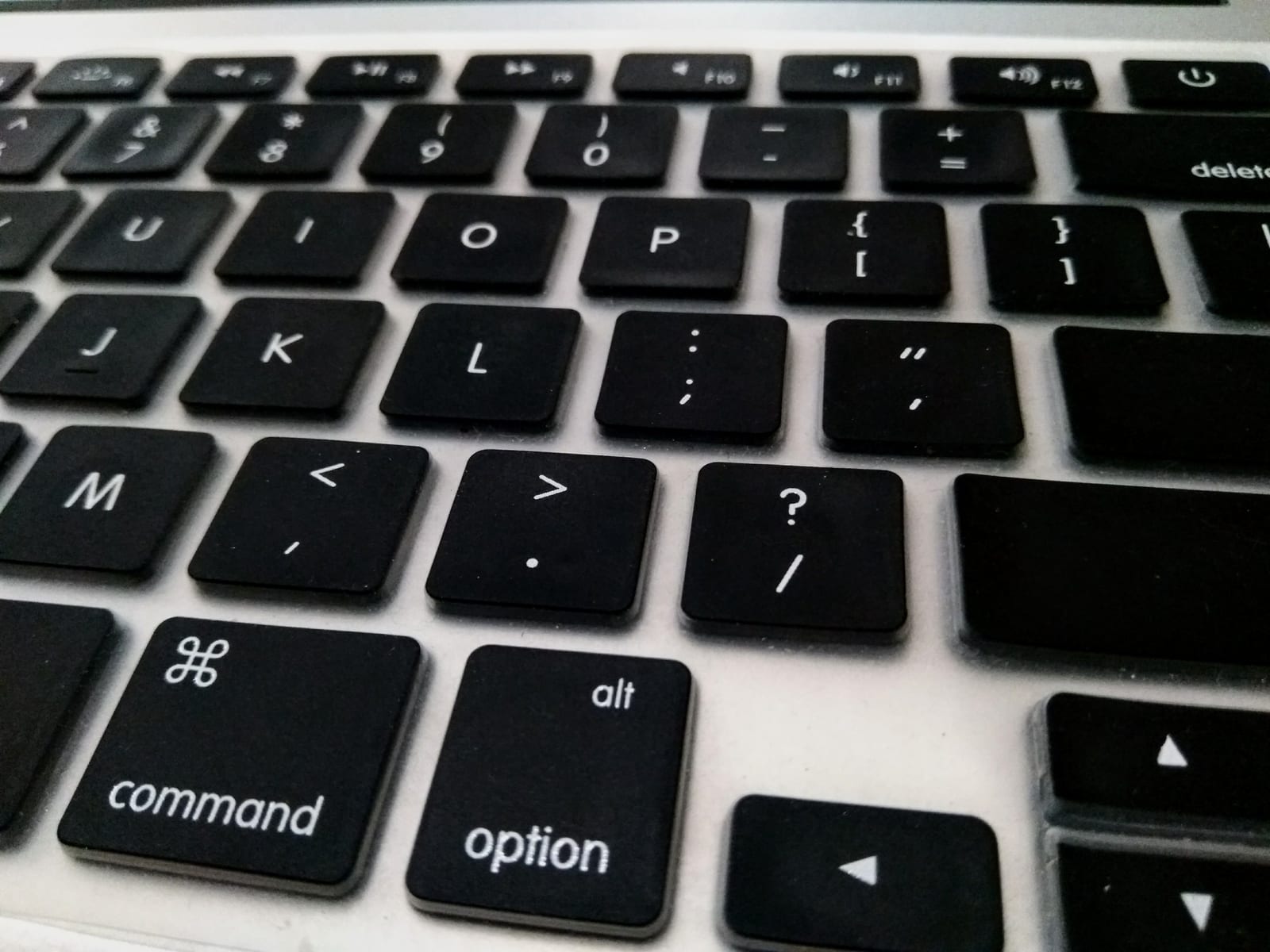
macOS can’t do this on its own: there is no built-in setting that binds an app to a keyboard shortcut. App Shortcuts in System Settings only reaches menu commands inside an app that’s already running, and Apple says so directly - you “can’t create keyboard shortcuts for general purpose tasks, such as opening an app.”
So the practical answer is to put your most-used apps on a modifier layer that macOS doesn’t already claim, and press one key.
Why Spotlight isn’t a launcher
Spotlight is a superb search box. Using it to open Chrome looks like this:
⌘Space- Type
chr - Glance at the result to confirm it matched Chrome
Enter
Step 3 is the expensive one. It’s a read-and-verify step, which means the sequence can never become fully automatic - you’re waiting on the machine to agree with you before you commit. That’s fine once. It’s a tax when it’s forty times a day.
| Method | Keystrokes | Requires reading the screen | Stable over time |
|---|---|---|---|
| Spotlight | 4+ | Yes | Results can reorder |
| ⌘Tab | 1-n | Yes, past the first app | No, order is most-recently-used |
| Dock click | Mouse | Yes | Position is stable |
| Bound hotkey | 1 | No | Yes |
⌘Tab deserves its own note, because people reach for it as the answer. It’s excellent for the last app you used and unreliable beyond that: the list is ordered by recency, so your fifth app sits somewhere different every time and you have to look to find it.
The layout that works: the number row
Put your ten most-used apps on Hyper + 1 through Hyper + 0.
The number row suits this better than letters for two reasons. It’s positional rather than mnemonic - your hand learns “second from the left”, not “the C key means Chrome” - and it leaves the far larger letter zone free for per-app commands. That division is the core of the keyboard shortcut layout that keeps a large set of bindings collision-free.
A workable starting set:
Hyper + 1browserHyper + 2editor or IDEHyper + 3terminalHyper + 4chatHyper + 5notesHyper + 6calendar or mail
Six is usually enough to cover most of a working day. Add the rest when you notice yourself reaching.
Make it focus-or-launch, not just launch
The binding should bring the app forward if it’s already running and start it if it isn’t. Without that, the key only works once per session and you’re back to Spotlight for everything after. This is worth checking explicitly in whatever tool you use, because “launch” and “focus” are sometimes separate actions.
What you need to set it up
You need two things: a trigger key that nothing else claims, and something that can bind an app to it.
The trigger is the easy part - a hyper key (⌃⌥⌘⇧ fired from one key, usually Caps Lock) is a combination essentially no app binds, so nothing you put on it will collide with an app’s own shortcuts.
For the binding itself, the options are a launcher with hotkey support, a remapper like Karabiner-Elements, or a command layer that ships with app bindings already set up. Super Shortcuts is the third: the hyper key arrives with a layer attached and a cheat sheet on hold, so you can see what’s bound without remembering it.
Where Spotlight still wins
Keep it for the long tail. Files you touch once a month, apps you barely use, calculations, unit conversions, definitions, and anything you genuinely need to search for rather than reach for. The two aren’t competitors - the mistake is using a search box for the ten things you never actually need to search.
For what comes after launching, the same layer handles per-app commands too: see context-aware shortcuts for one chord that does the right thing in every app, and the shortcut cheat sheets for what your apps already ship with.
If you want the version of this with a story attached, one of us stopped opening apps with Spotlight and wrote up how the first week actually felt.
Frequently asked questions
Can I assign a keyboard shortcut to open an app on Mac?
Not with the built-in settings. System Settings → Keyboard → Keyboard Shortcuts → App Shortcuts only binds menu commands inside an app, and Apple states plainly that you "can't create keyboard shortcuts for general purpose tasks, such as opening an app." Launching or focusing an app needs a third-party layer - a launcher, a remapping tool like Karabiner-Elements, or a command layer.
What's wrong with using Spotlight to open apps?
Nothing, for finding things you don't open often - that's what it's excellent at. The cost shows up on repetition. Opening Chrome via Spotlight is ⌘Space, type a few letters, glance at the result to confirm it's the right match, then Enter. That glance is the expensive part: it's a read-and-verify step, so it can't become muscle memory the way a fixed key press can.
Why not just use ⌘Tab?
⌘Tab is genuinely good for one thing: bouncing between the two apps you're using right now. It degrades past that, because the order is most-recently-used - the app you want is in a different position every time, so you have to look at the switcher to find it. A fixed binding doesn't move.
What if the app is already open?
A good binding does focus-or-launch: bring the app forward if it's running, start it if it isn't. That's what makes one key work all day rather than only at the start of a session, and it's the behaviour to check for in whatever tool you use.
How many apps is it worth binding?
The number row gives you ten, and in practice most people use far fewer than ten apps constantly. Bind the ones you reach for without thinking - browser, editor, terminal, chat, notes - and leave the long tail to Spotlight. The split is the point: fixed keys for the handful you repeat, search for everything else.